

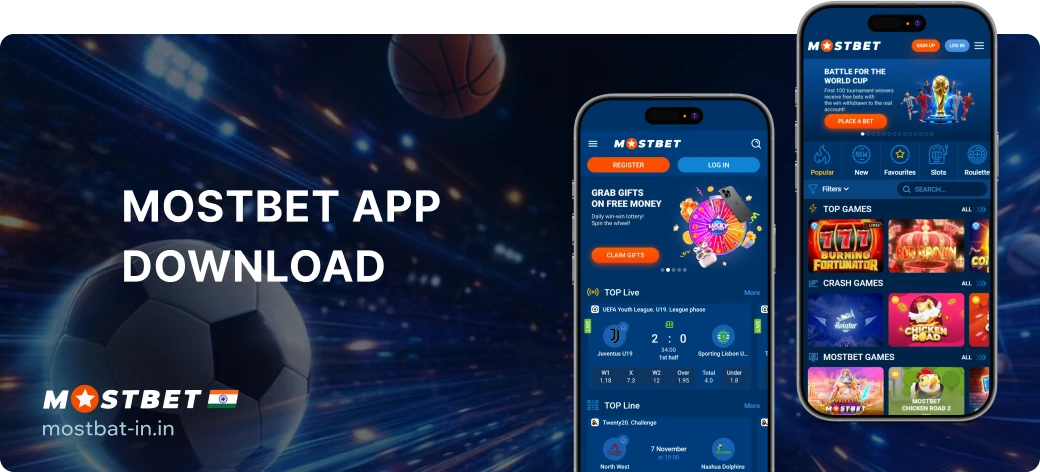
Android users can download a Mostbet APK and install it on a compatible device. An Android APK will not work on an iPhone or iPad: native iOS access depends on the applicable App Store region, while a mobile browser provides a separate route. Check the device guidance before choosing how to access the service, and obtain an APK only through a verified download page. Installation and updates work differently on each platform, so follow the instructions for your device.
Android App Specifications
| Specification | Android |
|---|---|
| Version | 7.18 |
| Package update | 16 October 2026 |
| Download size | 57.20 MB |
| Operating system | Android 7.0+ |
| Processor | Quad-core 1.4 GHz+ |
| RAM | 2 GB+ |
| Free storage | 100 MB minimum |
| Screen resolution | 480 × 800+ |
| Connection | Wi-Fi, 3G or 4G |
These figures describe the listed release, not a tested copy of an APK downloaded from this site. The 57.20 MB figure is the package download size; the separate 100 MB minimum is free-storage guidance for installation. Later releases may change the size or requirements, so check the details of the package you intend to install.
Downloading and Installing the APK
Mostbet offers an Android app as an APK. Downloading the file and installing it are separate tasks: a completed download does not mean the app is ready to open. Use a verified download page, confirm that you have selected the intended Android package and avoid modified APKs from other sources.
Downloading the Android Package
- On your Android device, open the verified Mostbet download section.
- Select the current Android APK and let the download finish. If the page displays a version, check that information rather than assuming the release listed in the table is still the available download.
- Find the completed APK through the browser or file manager that handled the download. Confirm it is the file you intended to obtain before opening it.
Allow enough space for both the downloaded file and installation. If the transfer stops, resolve the download problem before changing any installation permission.
Installation and Source Permissions
- Open the downloaded APK. If Android requests permission to install from this source, allow it only for the browser or file manager used to open the file.
- Complete the installation with device security scanning enabled. Do not replace a flagged package with a modified APK.
- Once installation finishes, remove the permission granted to that browser or file manager.
The permission applies to an installation source, not to your Mostbet account. If installation fails, check device compatibility and available storage before trying again.
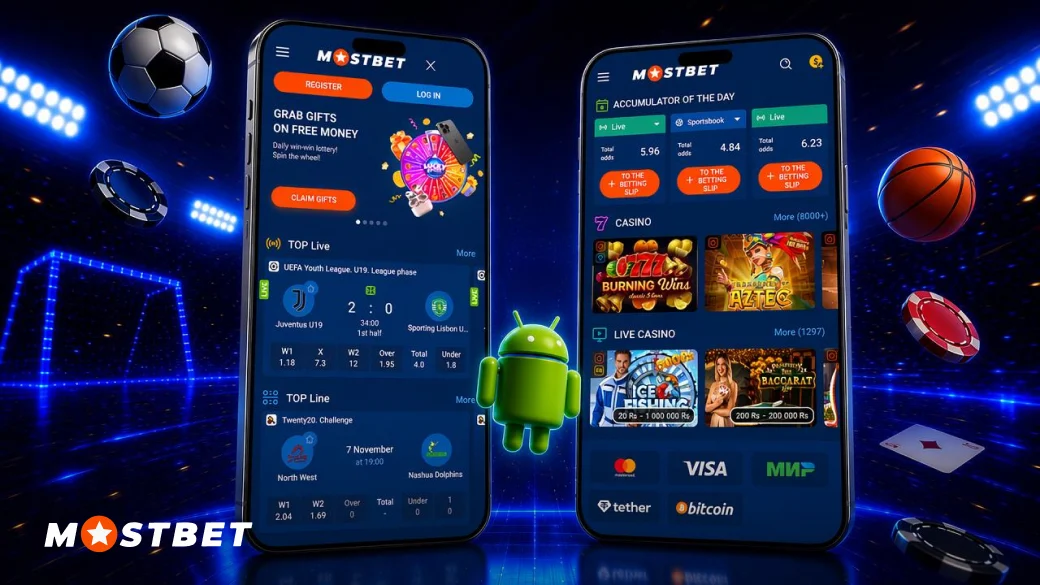
iPhone and iPad Access
| Specification | iPhone and iPad |
|---|---|
| Native app access | Depends on the applicable App Store region |
| Operating system guidance | iOS 11.0+ |
| Processor guidance | A9 chip or newer |
| RAM guidance | 1 GB |
| Free-space guidance | 100 MB |
| Screen-resolution guidance | 1334 × 750+ |
| Connection | Wi-Fi, 3G or LTE |
| Browser alternative | Safari or another supported mobile browser |
The software and hardware figures are device guidance, not confirmation of a native listing in the India App Store. A store-installed app and browser access are different ways to use the service.
Native App Availability
A native Mostbet iOS app is subject to availability in the applicable App Store region. Check your region’s listing before relying on that route, and use the store’s normal installation process if the app is available. The Android APK cannot be installed on an iPhone or iPad.
The guidance in the table can help you assess a device, but an available store listing may show its own requirements. Neither the guidance nor Android package information establishes that a native iOS installation is available to every reader in India.
Safari and Home-Screen Access
If a native listing is unavailable, Safari or another supported mobile browser offers web access. Safari’s Add to Home Screen option can create an entry for returning to the site, but that entry is not an installed iOS app.
- Open the intended site in Safari and confirm that the page loads.
- Use Safari’s sharing options to select Add to Home Screen.
- Open the resulting home-screen entry to access the web version.
This route requires neither an APK nor Android installation permission. If the page does not load, check the browser connection rather than following the Android installation procedure.
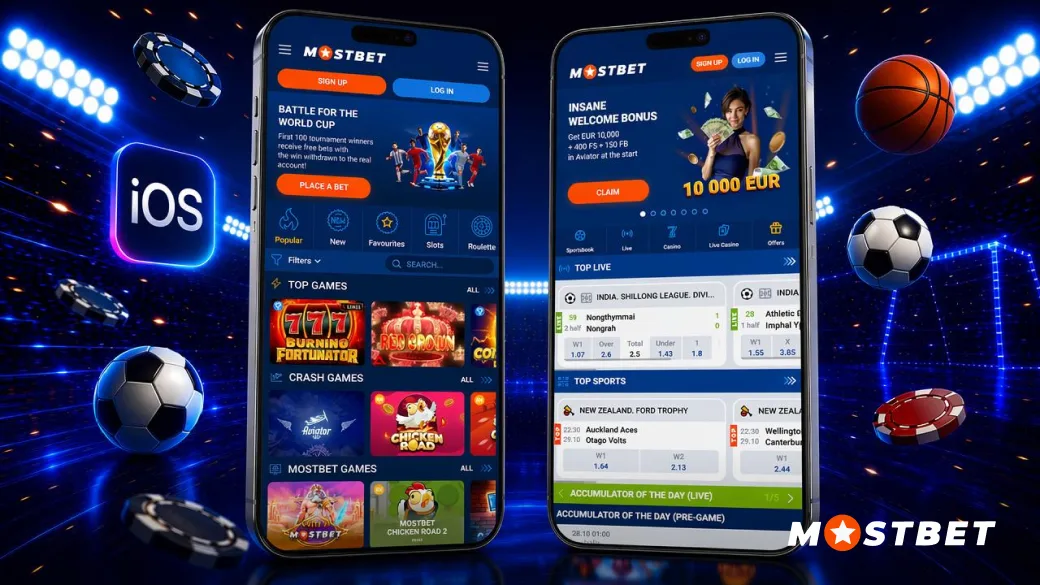
Mobile Features and Account Access
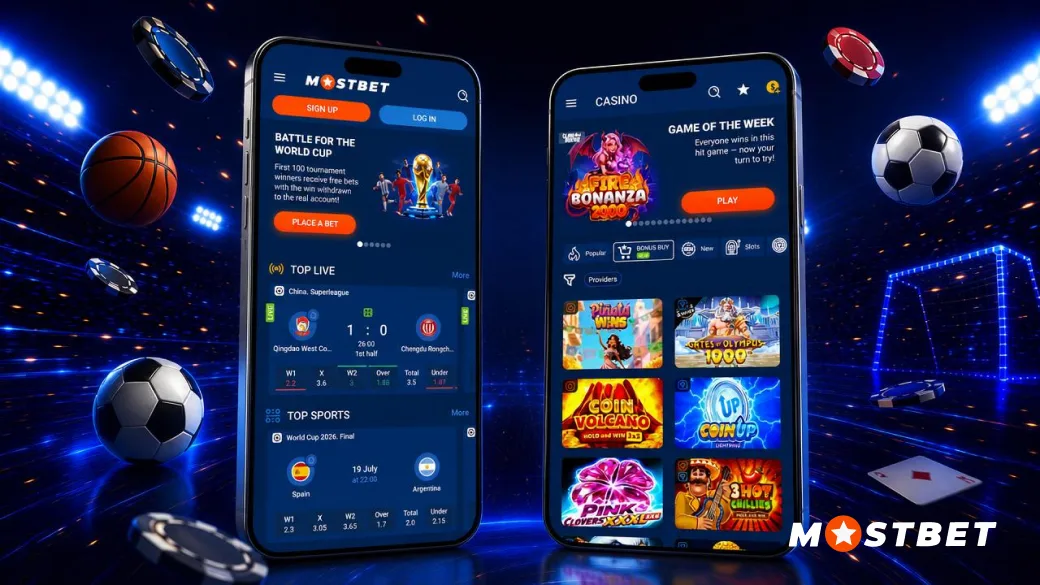
Mobile access includes betting, casino play and account functions. The available experience can differ between an installed app and a browser-based home-screen entry, and some controls depend on the device or section in use. Installing an app or adding a shortcut does not sign you into an account.
Sports, Casino and Account Functions
The mobile offering includes pre-match and live sports betting, casino and Live Casino sections, and Aviator. Listed functions also include one-click bets and transaction history. You can review the account information shown after signing in and manage settings through the available account controls.
Other listed features include live streaming, odds and results notifications, and Android live-score and betting widgets. Their availability may depend on the device, event or access route; do not assume a stream or particular control will appear for every selection. Recent bet history may be accessible offline, but placing a bet requires a connection. When switching between app and browser access, sign into the same account to view its current information rather than relying on a locally displayed record.
Registration, Login and Promo Code
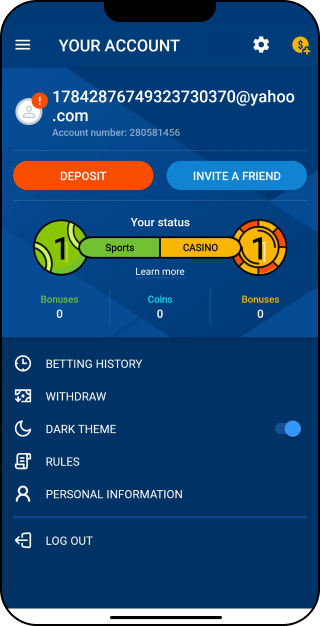
New users need to complete registration before signing in. If you already have an account, use its existing credentials after installing the app or changing devices instead of registering again. Complete any account-verification or one-time-password step presented during sign-in, and keep those codes private.
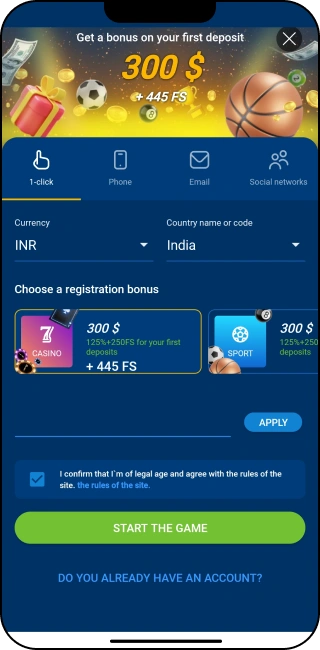
If the registration form provides a promo-code field, you can enter WELCOMEMOST. Entering it is separate from downloading the app; the code alone does not establish a particular bonus amount or automatic entitlement. Review the terms presented for the offer you select rather than assuming the standard sports offer below is a code-specific benefit.
INR Payments and Offer Conditions
The cashier uses INR. Documented deposit methods include UPI, PayTM, Visa, Mastercard, RuPay and crypto. INR withdrawals are supported, with bank transfer and crypto given as examples. A deposit method is not necessarily available for withdrawals on a particular account, so check the direction offered for your transaction.
There is no operator fee for standard deposits or withdrawals, but banks, wallets, card issuers or blockchain networks may charge. Account verification may be required for a withdrawal.
Separate from the promo code, the standard sports first-deposit offer is 125% up to 100,000 INR. It has a 5x wagering requirement on accumulator bets, and first-deposit bonus funds expire 30 days after credit. Read the applicable bonus conditions before choosing an offer.
Updating the App
Android APK updates and native iOS updates use different routes. Notes for the listed Android version 7.18 describe a revised visual style for main sections, faster page loading and improved overall stability. Those are release notes for that package, not results of a test of a file currently available to download.
Android Package Updates
- Check the verified download section for a newer APK. The 16 October 2026 date in the specifications belongs to the listed 7.18 package; it does not establish what version is available when you visit.
- Download the newer package on the device with the existing installation.
- Open it and install it over the current app. If Android requests permission for the browser or file manager opening the APK, grant it only for that source and remove it afterward.
An update does not require a new account. Open the updated app and sign in with your existing account if prompted. If installation fails, check available space and compatibility before downloading the package again.
Updating an Installed iOS App
Where a native app is available in your App Store region, check its listing and use the App Store’s update process. The Android package version and date do not indicate whether an iOS update is available.
A Safari home-screen entry works differently: opening it accesses the web version. Refreshing a web page is not the same as installing an updated native iOS package. If you are unsure which route you use, distinguish an App Store installation from an entry added through Safari.
Download and Installation Problems
Identify whether the problem occurs during download, installation or launch before taking action. Each stage calls for different checks; reinstalling is not a universal fix. Keep security scanning enabled and use a verified download source while troubleshooting.
Download Stops or Does Not Start
- Download does not begin — the connection may be interrupted — check Wi-Fi or mobile data, then retry from the verified download section.
- Transfer stops partway — available space may be insufficient for the file — check free storage, clear space if needed and start a fresh download.
- The offered file looks unexpected — you may have opened a different download source — return to the verified page and confirm the Android package before opening a file.
These checks concern obtaining the APK. Changing installation permission cannot complete a download that has stopped.
APK Will Not Install
- Android declines the package — the device may not meet its requirements — compare its operating system and hardware with the Android specification table.
- Installation cannot finish — free storage may be below the 100 MB minimum guidance — check available space; the 57.20 MB download size is not the installation-space requirement.
- Android requests permission — the browser or file manager opening the APK may not be permitted to install from that source — grant permission only to that app for installation, then revoke it.
If security scanning flags the package, do not disable scanning or use a modified APK as a workaround.
App Will Not Open or Connect
- The app closes at launch — a temporary device or app problem may be involved — restart the device and try opening it again.
- The app opens but cannot connect — the network may be interrupted — check whether another page loads, then retry when the connection is working.
- The problem persists — technical help may be needed — describe the device, app version and point of failure to techsupport@mostbet.com. Never include a password or one-time code.
A launch or connection problem does not, by itself, mean that account information has been lost.
Account and Device Security
The service lists SSL encryption and account-security controls, including verification and one-time-password protection. Device-dependent options such as biometric sign-in may also be offered, but they should not be assumed to work on every device. None of these controls makes an untrusted download safe.
Obtain the APK from a verified download page, avoid modified copies and keep Android security scanning enabled. Treat installation permission as temporary and specific to the browser or file manager opening the APK; remove it afterward. Use your protected account when moving between app and browser access, keep credentials private and review account activity after signing in. If an update prompts another login, follow the normal sign-in process rather than sharing verification details with someone offering to sign in for you.
FAQ
How do I download the Mostbet APK in India?
On Android, open the verified Mostbet download section, download the current APK and open the completed file. Allow installation only for the browser or file manager used, install the app, then remove that permission. Check the offered package details rather than assuming the listed release remains the current download.
What are the Android requirements?
The listed 7.18 release specifies Android 7.0+, a quad-core 1.4 GHz+ processor, 2 GB+ RAM, 100 MB minimum free storage and a 480 × 800+ screen, with Wi-Fi, 3G or 4G connectivity. Its 57.20 MB download size is separate from the free-storage requirement.
Can I install an Android APK on an iPhone?
No. An Android APK will not install on iOS. Check for a native app in your applicable App Store region, or use Safari or another supported mobile browser. A Safari home-screen entry provides web access, not a native installation.
Can I use my existing account after an update?
Yes. Updating does not require creating another account. Open the updated app and sign in with your existing credentials if prompted. Keep one-time codes private; an update is not itself an account-recovery method if you cannot sign in.
Does downloading the app activate a bonus?
No. Downloading alone does not establish eligibility. A separate app-specific offer concerns new users who have never logged in through the app and requires a deposit. Check its applicable terms; do not assume that downloading, signing in or entering a code automatically credits an offer.